
Linkly pairing guide
U9 CITY POS 0.3.14, English packaging revision 1. Windows sandbox candidate. These instructions apply to Linkly Virtual Pinpad, not a live bank terminal. Accreditation is pending.
Before you begin
- Obtain the Windows candidate package and sandbox account from U9 support. Extract the whole package before opening U9 CITY POS.exe.
- Create an owner account on first launch. There is no default login. The POS owner account is different from the Linkly Cloud account.
- Use a dedicated test terminal. Do not re-pair a working terminal or move its pairing files. Resolve pending payments before changing any connection.
- The host needs internet access. U9 support must configure the dedicated notification connection before a payment test; the app does not start it.
Pair the terminal
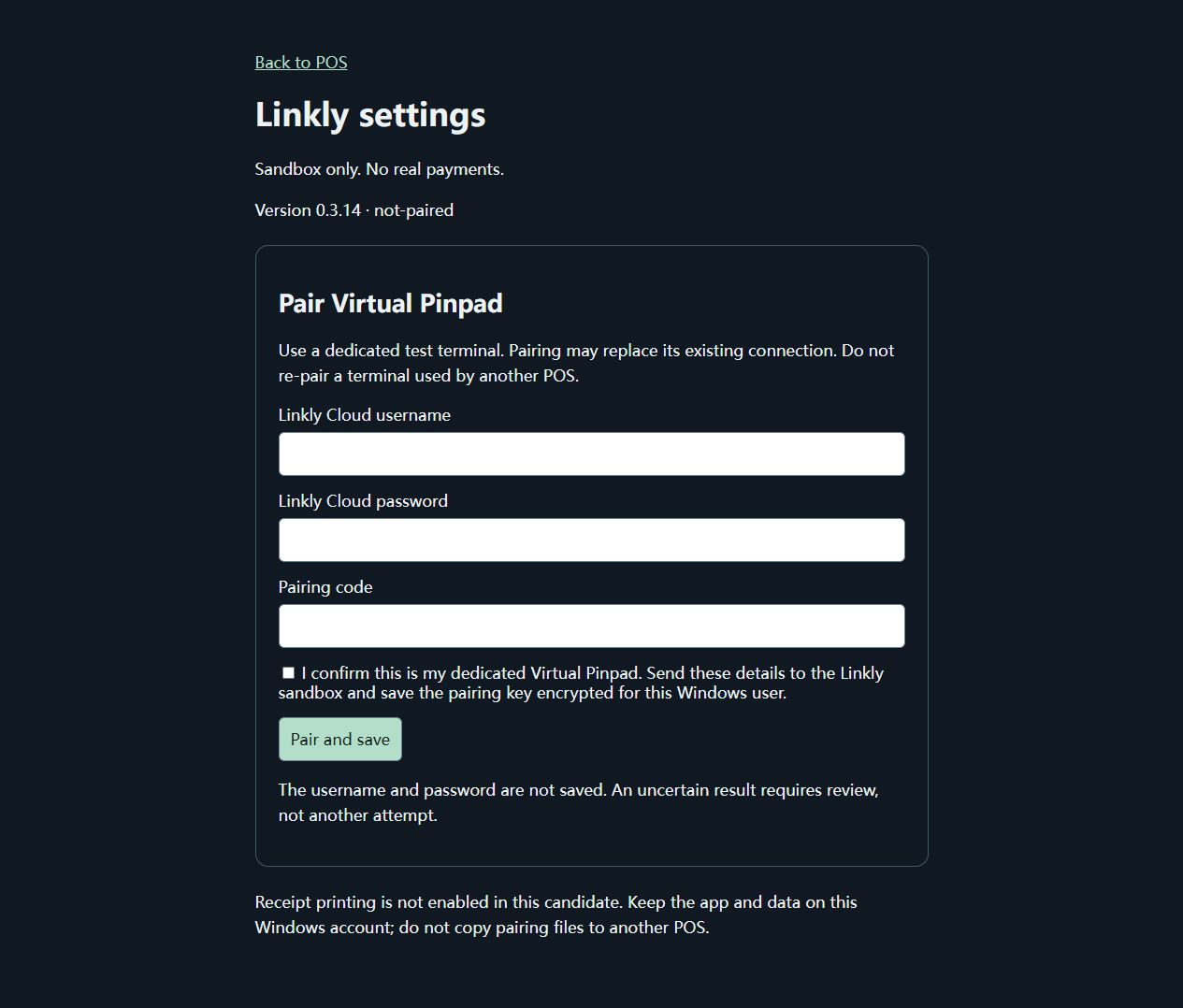
- Sign in to U9 CITY POS as owner. In the desktop menu, choose U9 CITY POS → Linkly settings.
- On an unpaired Virtual Pinpad, obtain a pairing code as described below.
- Enter Linkly Cloud username, Linkly Cloud password and the six-digit Pairing code in the app. Do not enter them on this website or send them by email.
- Read the confirmation, tick it and click Pair and save once.
- Wait for Pairing saved, then close and reopen the app. Sign in and return to Linkly settings; it should show Paired.
The pairing key is encrypted for the current Windows user. The Linkly username and password are not saved. Pairing does not send a payment.
Virtual Pinpad setup
- Install the Linkly test harness using Offline Development, then open Virtual Pinpad.
- Press FUNC → 7410 → OK. At TERMINAL CONFIGURATION, press 0. At CLOUD MODE, press 1 → OK. Confirm a reconnect prompt if shown, then press CANCEL.
- For a new pairing only, press FUNC → 8880 → OK → OK to obtain the code.
If the prompts differ or show CLOUD CONNECT FAILURE, stop and contact U9 support. See the Linkly Cloud development guide.
Check the connection
- Ask U9 support to confirm the notification connection. Leave Virtual Pinpad at READY.
- In Linkly settings, select the agreed test type and amount. Read the confirmation and select Authorize.
- Return to the POS and submit that test from the order's Linkly payment control. Each authorization covers one transaction and lasts up to 15 minutes. It does not carry over when the app closes.
- Confirm the result in the original POS order. READY on the terminal alone is not proof of payment. Do not repeat a charge because a response is delayed.
This candidate accepts sandbox amounts up to AUD 100.00 and requires refunds to refer to a successful payment in the same profile. Physical printing is not enabled; no real money is taken.
If something goes wrong
- Rejected, uncertain or interrupted pairing: do not submit again. Ask support to check the saved attempt. Do not reset the terminal or delete its files.
- Settings unavailable: sign in as owner first. If a connection port is occupied, contact support; do not close an unrelated service.
- Payment pending or result unknown: check the original transaction. Do not re-pair or create another charge.
- Changing PC or Windows account: contact support before moving anything. Copying pairing files is not a supported transfer procedure.
- Diagnostic records: the sandbox app saves local transaction records with credentials and card details removed. Ask support which files to provide; do not send the entire profile folder.
- Upgrading from 0.3.11: contact support first. If the app reports
DESKTOP_VENDOR_REVIEW_REQUIRED, keep its data and pairing files unchanged. Do not delete them or pair again.
Support
admin@u9city.com. Include the POS version, terminal model, time and error text. Do not send passwords, pairing codes, PINs or card details.